

Dots API Environments
Sandbox and Production base URLs, how Sandbox behaves differently, and how to move an integration to live funds.
The Dots API provides two environments for integration:
| Environment | Description | Base URL |
|---|---|---|
| Sandbox | Allows you to develop and test the integration without affecting live funds. | https://api.senddotssandbox.com/api |
| Production | It’s used for live transactions after successfully testing the integration. | https://api.dots.dev/api |
You must inform the Dots API version when performing a request. Currently, the V2 Dots API is available. Therefore, when performing a request to the Production environment, for example, you must use the following URL:
https://api.dots.dev/api/v2
Sandbox Environment
The Sandbox environment simulates the live production environment, enabling you to develop and test your integration safely. Use the Sandbox to build and verify your integration before upgrading to the Production environment.
The Sandbox environment provides the following features:
- Runs the same API as Production. Dots simulates payouts, payments, deposits, and compliance checks as described below, and no money moves.
- Sends webhooks as in Production, including for simulated outcomes.
- Sends no text messages, so SMS verification codes never arrive. Enter any code except
000000. - Allows several users to share the same payout method details without flagging them.
- Each new App starts with a $1,000,000 balance and each new user with $100. Add more with a simulated deposit.
Sandbox Setup
To use the Sandbox environment:
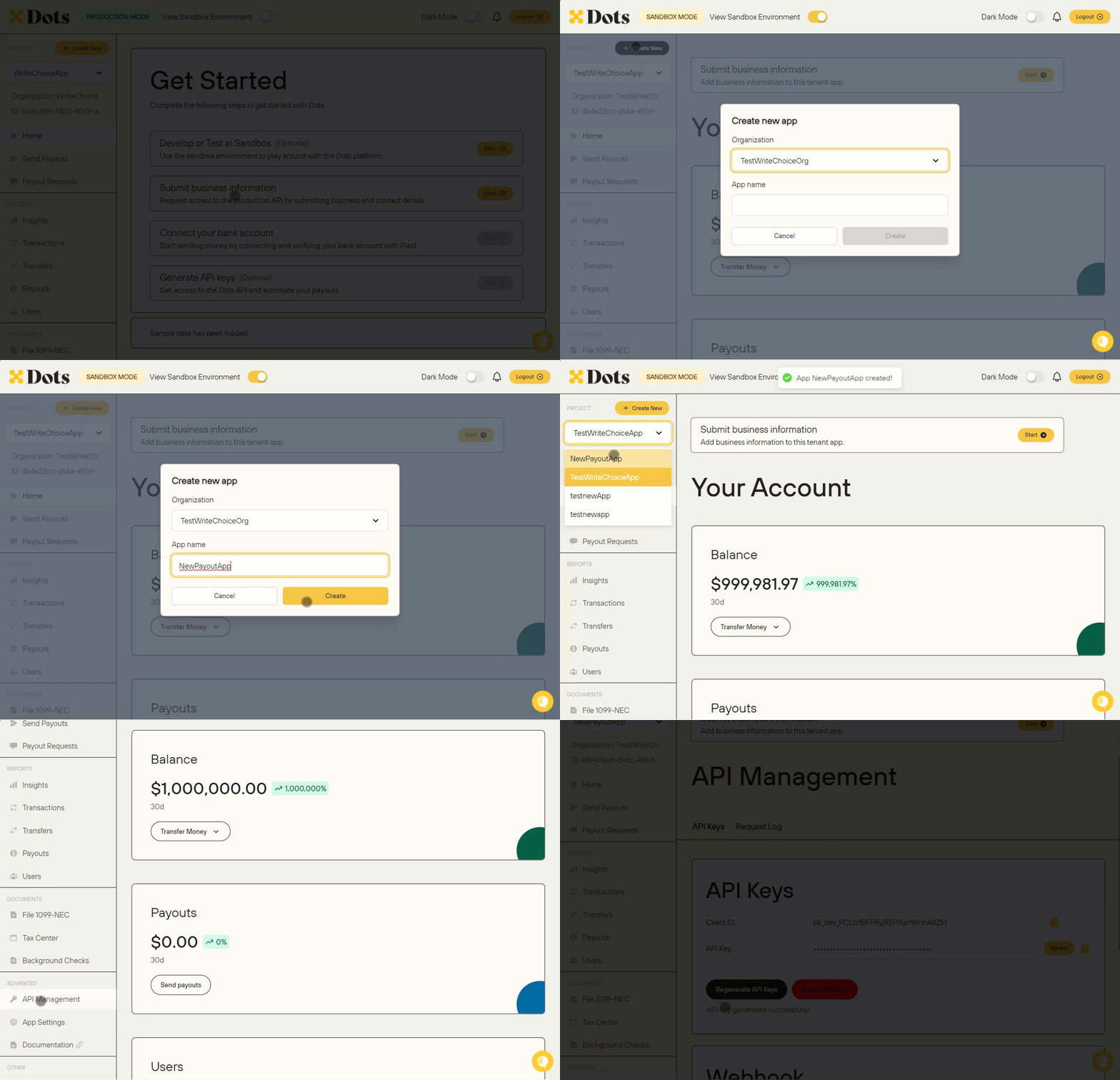
- Log in to the Dots Dashboard and toggle the View Sandbox Environment in the upper left corner. A SANDBOX MODE badge appears on the top of the page.
- Use a mirrored production App, or create a Sandbox-only App. Generate Sandbox API keys for the App.
- Use https://api.senddotssandbox.com/api for Sandbox API requests.
When you first open the Sandbox, Dots creates linked copies of the production organizations and Apps that you can access. The copies use the production names, plans, fees, and supported settings.
Existing Sandbox values do not update automatically after production settings change. To update a linked organization, go to Organization settings > Payouts > Sync settings from production. Review the changes, then confirm the sync.
Sandbox Payouts
Sandbox payouts do not move money. Every payout rail, including ACH, Cash App, international bank, wire, RTP, PayPal, Venmo, push to card, crypto, AirTM, Payoneer, Visa prepaid card, and Amazon gift card, initially returns a pending status. After at least one minute, the payout status changes based on the last two digits of the payout amount after fees:
| Last two digits after fees | Outcome |
|---|---|
01 | The payout fails. |
02 | The payout completes, then reverses after at least one additional minute. |
03 | The payout remains pending. |
| Any other value | The payout completes. |
If the platform pays the fees, a payout of 1001 cents fails, while a payout of 1000 cents completes. Sandbox PayPal and AirTM payouts require the user to have a PayPal or AirTM email, but the email does not need to belong to a live account. Sandbox crypto payout methods accept any wallet address on a supported network.
Sandbox Compliance Checks
Sandbox compliance checks pass by default. Use these values to test how your integration handles a check that does not pass:
| Check | Value | Outcome |
|---|---|---|
| OFAC screening | User name Flag Sanctions or Fail Sanctions | The user is flagged, and compliance.flags.ofac_status is no longer unflagged. |
| ID verification | User first or last name containing Mismatch | After ID verification, the user is flagged with compliance.flags.name_mismatch. |
| TIN verification | TIN 999999999 | The TIN is mismatched. |
| TIN verification | TIN 888888888 | The TIN is pending, then becomes matched within about an hour. |
| Background check | SSN 111111111 | The background check returns consider. |
| Background check | SSN 222222222 | The background check returns failed. |
| Organization verification | Organization name containing Reject KYB or Review KYB | The organization is rejected, or held for manual review, instead of approved. |
| App verification | Business name containing Reject KYB or Review KYB in submitted KYB | The App is rejected, or held for manual review, instead of approved. |
| User verification code | Code 000000 | The code is rejected. Any other code is accepted. |
To clear every flag on a user, call POST /v2/users/{user_id}/sandbox/clear-flags, or choose Clear all flags on the payee’s page in the Dashboard. Held payouts to that user resume. A user created with a sandbox value is flagged again the next time that check runs.
Sandbox Payments and Verification Debits
Sandbox payments and verification debits do not pull money. They initially return a pending status. After at least one minute, the status changes based on the last two digits of the payment amount:
| Last two digits | Outcome |
|---|---|
01 | The debit fails with R01 (insufficient funds). |
02 | The debit completes, then fails with R03 (no account) after at least one additional minute. |
03 | The debit remains pending. |
| Any other value | The debit completes. |
Verification debits are always $1.00, so the last four digits of the user’s bank account number pick their outcome instead: 0001, 0002 and 0003 behave like 01, 02 and 03. A failed verification debit sends user.onboarding_revoked, as in production.
Sandbox Deposits
Sandbox ACH deposit details are available on every plan. Go to Settings > Balance and select Generate ACH details to get a Sandbox account and routing number for the App, and a bank letter that shows them. The numbers are not real, and nothing sent to them arrives.
To test incoming funds, enter an amount under Simulate inbound deposit on the same page, or call POST /v2/apps/{app_id}/simulate/deposit with an amount in cents. The deposit creates a completed refill and credits the App’s wallet. Deposit details generated in the Dashboard accept ACH and RTP deposits, set with rail. Details that Dots set up for wire funding accept ACH and wire deposits.
To test a returned deposit, add "returned": true. The deposit credits the App, then the sender’s bank returns it, so the refill fails and the credit leaves the App’s wallet.
Production Environment
The Production environment is used for live transactions.
Dots team recommends switching to the Production environment only after completing all necessary integration tests.
To request access to the Production environment, contact us at info@dots.dev or through the Dots Dashboard, following the steps presented below:
- Log in to the Dots Dashboard and toggle off the View Sandbox Environment in the upper left corner. A PRODUCTION MODE badge appears on the top of the page.
- If you used a mirrored Sandbox App, select its Production counterpart. If you used a Sandbox-only App, create a Production App first; Sandbox-only Apps have no Production copy. Generate Production API keys for the Production App. Sandbox keys do not work in Production.
- If you’re using Dots API, you must update the base API URL to https://api.dots.dev/api/.